EXVAST-VISION User Guide
How to turn the screen at your venue into a scoreboard with an iPhone or iPad.
0. What EXVAST-VISION does
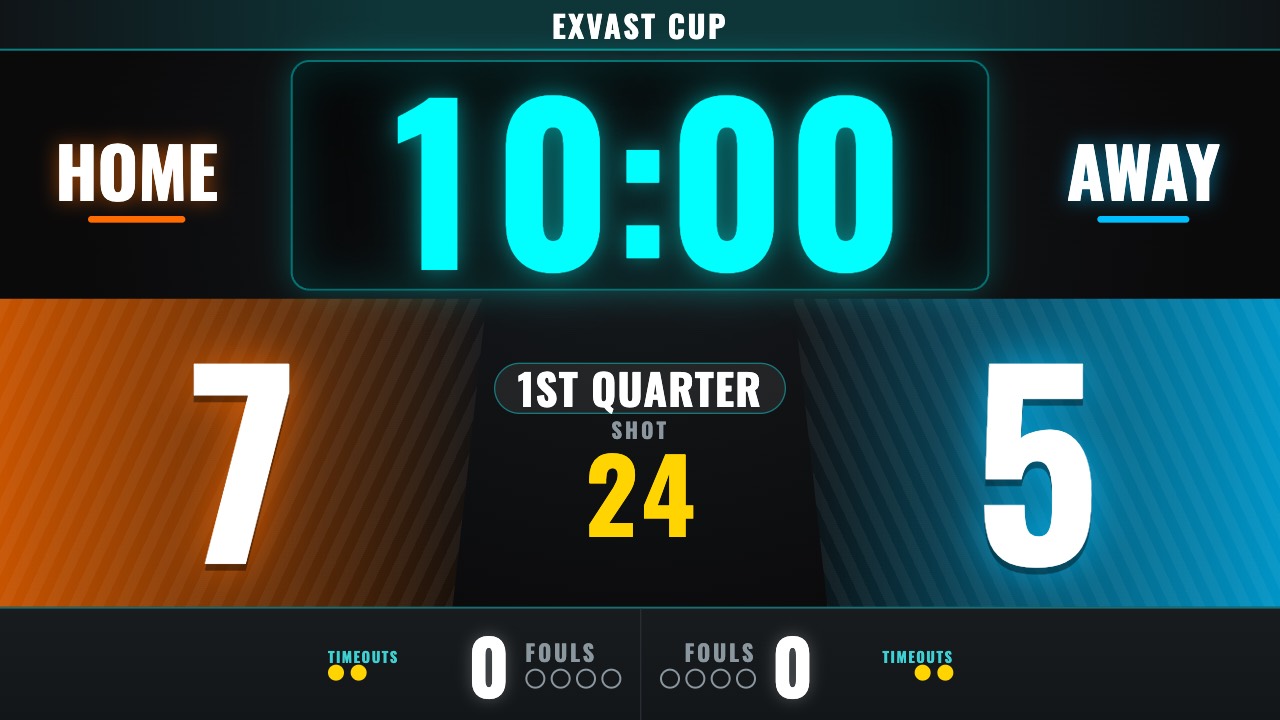
- Shows a scoreboard with the score and the clock on the screen at your venue.
- Your iPhone or iPad becomes the remote.
- Game length, periods and set scoring follow the rules of 25 sports.
- Shows team names, colours and logos, an event title and sponsor logos.
- Plays an animation when a team scores, and sounds a buzzer.
- The paid version adds rosters and starting lineups, extra remotes and Share online.
1. What you need
- An iPhone or iPad with this app installed
- A screen at the venue (TV, large monitor, projector)
- A cable to connect them, or a screen that supports AirPlay
Connecting to the screen
| Connection | What to do |
|---|---|
| Cable (HDMI) | Use a USB-C to HDMI adapter and plug it into the screen. |
| Cable (USB-C) | If the screen accepts video over USB-C, one USB-C cable is enough. |
| AirPlay | Open Control Center, tap Screen Mirroring and choose the screen. |
Once connected, the screen shows the scoreboard and your device shows the remote. The screen does not simply mirror your device.
If your device cannot send video over a cable, use AirPlay, or open the scoreboard in a browser on a TV or computer (see "9. Connect other devices").
2. Getting started
- Open the app.
- Choose a sport.
- Connect your iPhone or iPad to the screen.
- Tap START on the remote to run the clock.
While the app is open, your device will not go to sleep. If you switch to another app or lock the screen, the scoreboard stops too. Keep the app open during the game.
3. The Score screen
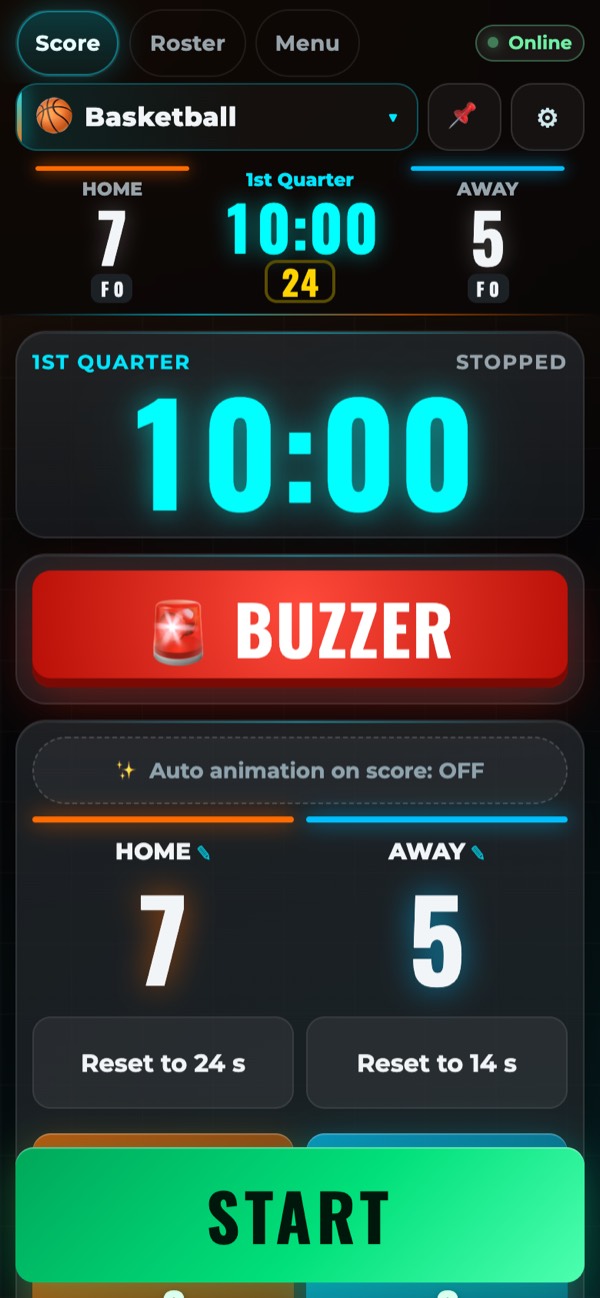
The Score tab on the left is the one you use during a game.
Top bar
| Item | What it does |
|---|---|
| Score / Roster / Menu | Switches between screens. |
| Sport name | Opens the list of sports. |
| 📌 | Pins the clock and score to the top so they stay visible when you scroll. You can choose the size and which items to pin. |
| ⚙ | Opens Match settings (sport, rules, time). |
Clock
- START runs the clock and STOP pauses it.
- Use "-1 min", "-10 s", "-1 s", "+1 s", "+10 s" and "+1 min" to adjust the time.
- Tap the clock or "⌨ Enter time" to type the minutes and seconds.
- "Reset clock" returns to the start of the current period.
Periods (periods, quarters, halves)
- "Next" and "◀ Back" move to the next period or break.
- You can also tap a period name to jump straight to it.
- After Full Time, you can start a shootout (turn it on in Match settings first).
Score
- "+1" and "-1" change the score. Basketball has "+1", "+2" and "+3".
- Turn on "✨ Auto animation on score" to play an animation on the scoreboard every time a team scores.
- Tap "✨ Animation" to play one whenever you like.
Buzzer
Tap "🚨 BUZZER" to sound the buzzer. Choose the sound and volume under Buzzer in the Menu.
Buttons that depend on the sport
| Button | How to use it |
|---|---|
| Fouls | Counts team fouls. |
| Add suspension | Enter the jersey number and the time. The scoreboard shows the time left. |
| Start time-out | Shows the time-out countdown and keeps count of the time-outs left. |
| Shot clock | For basketball and similar sports. "Reset to 24 s" and "Reset to 14 s" reset it. After a score it waits, stopped. Tap "▶ Start shot clock" when play restarts. |
4. Match settings (sport, rules, time)
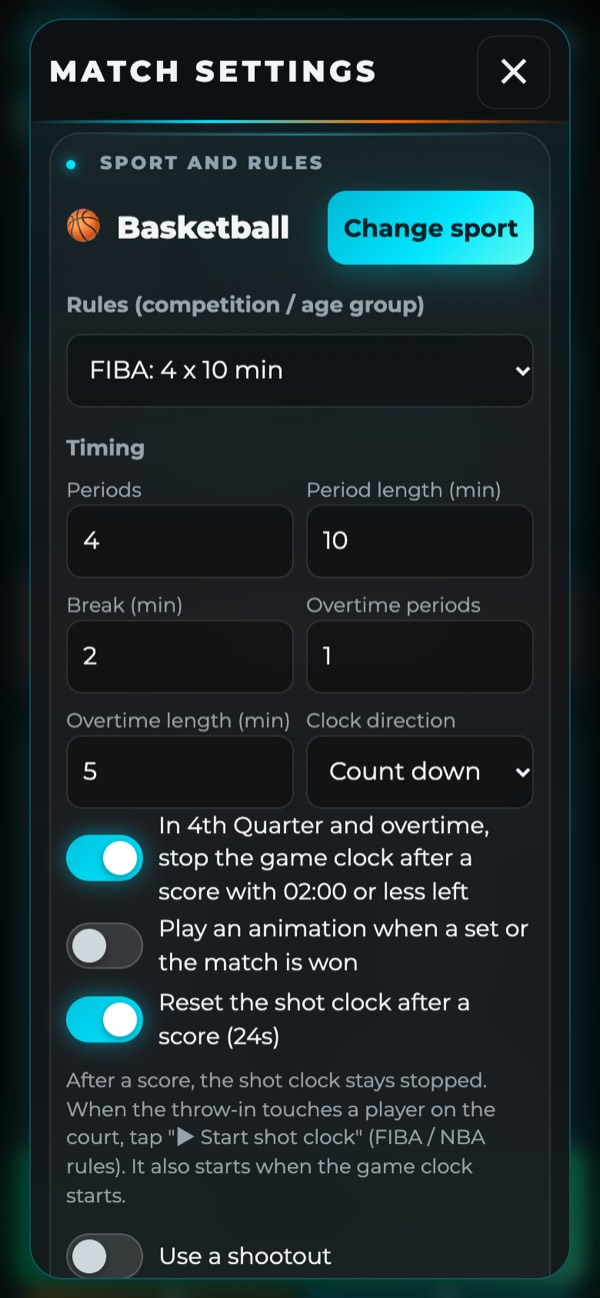
Tap ⚙ to open them.
Choosing a sport
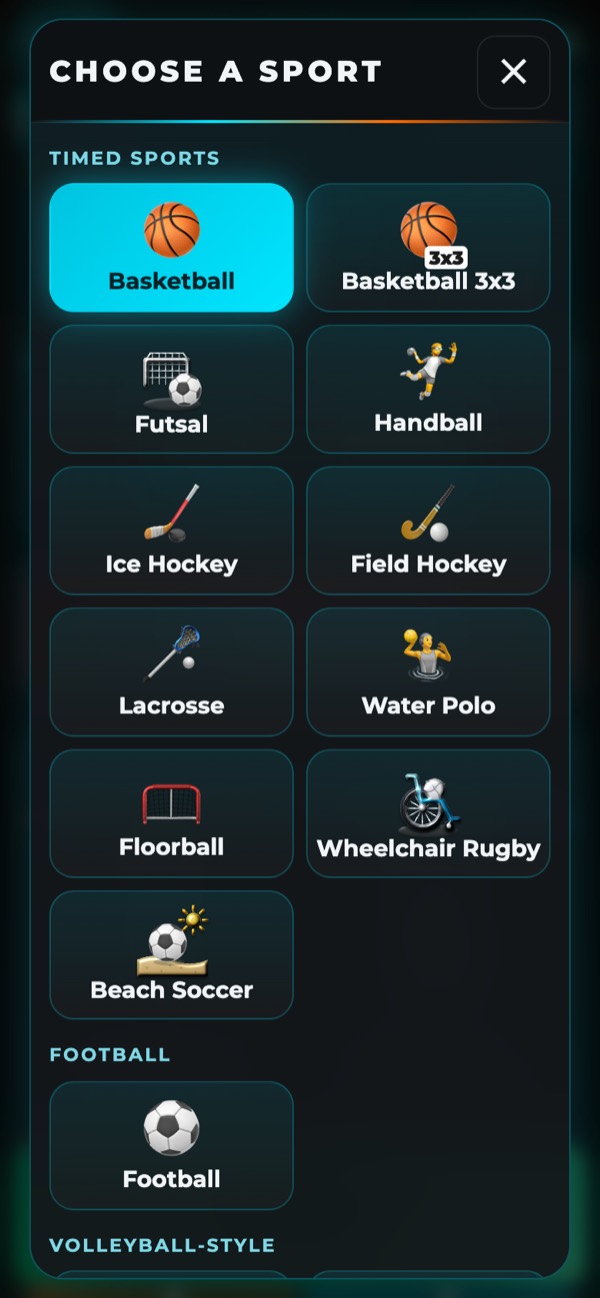
Tap "Change sport" and pick from the list.
| Type | Sports |
|---|---|
| Timed sports | Basketball, Basketball 3x3, Futsal, Handball, Ice Hockey, Field Hockey, Lacrosse, Water Polo, Floorball, Wheelchair Rugby, Beach Soccer, Football |
| Volleyball | Volleyball, Beach Volleyball, Sitting Volleyball |
| Racket sports | Badminton, Table Tennis, Tennis, Soft Tennis, Pickleball, Padel, Beach Tennis, Squash |
| Baseball | Baseball, Softball |
| Other | Other (timed) and Other (sets). For a sport that is not listed, set your own time or points here. |
Rules and time
- "Rules (competition / age group)" sets the number and length of periods for that competition.
- Under "Timing" you can change the number of periods, their length, breaks and overtime yourself.
- "Clock direction" chooses between counting down and counting up.
Shootout
Turn on "Use a shootout" to start one after Full Time. You can set the number of shots per team. If it is still tied after those shots, it goes to sudden death.
New match
"New match (reset scores and clock)" sets the score and the clock back to the start.
Rule automation
In some sports, a goal automatically releases a suspension, as the rules require. In futsal, for example, when the team with more players scores, one of the other team's suspensions ends. You can turn this off.
5. Point-based sports and baseball
Volleyball and racket sports
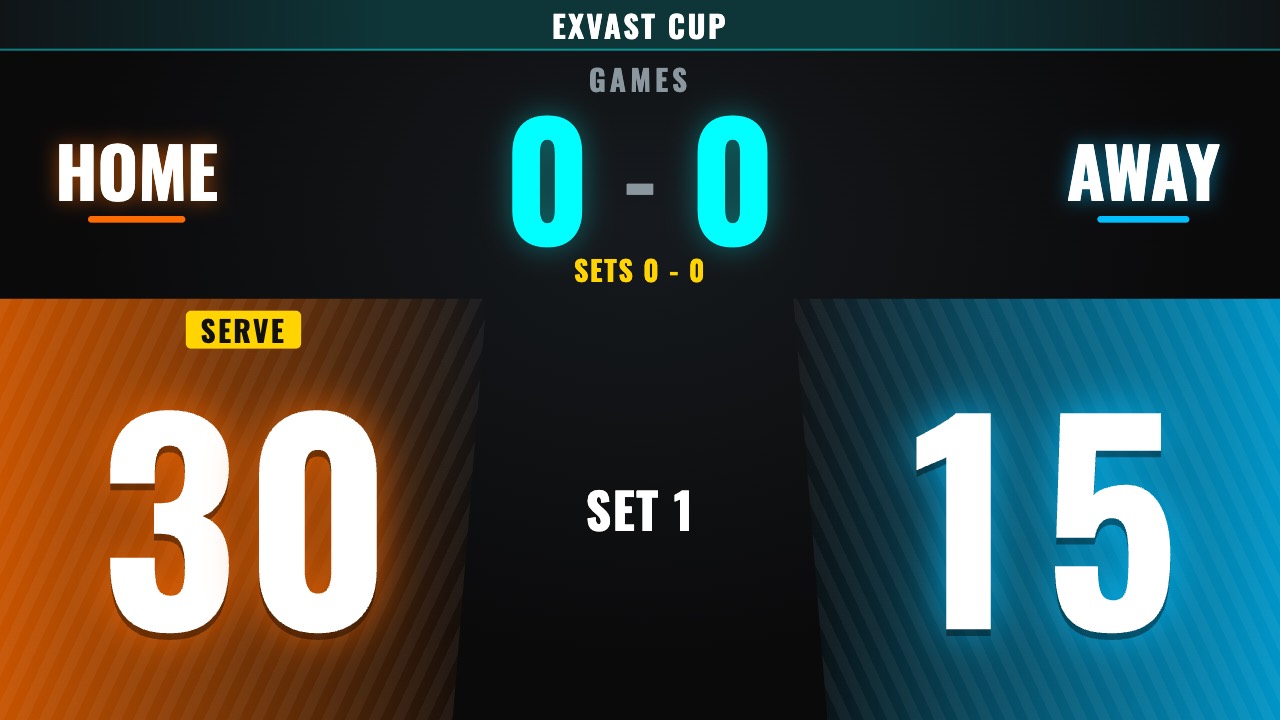
These games run on points and sets instead of a clock.
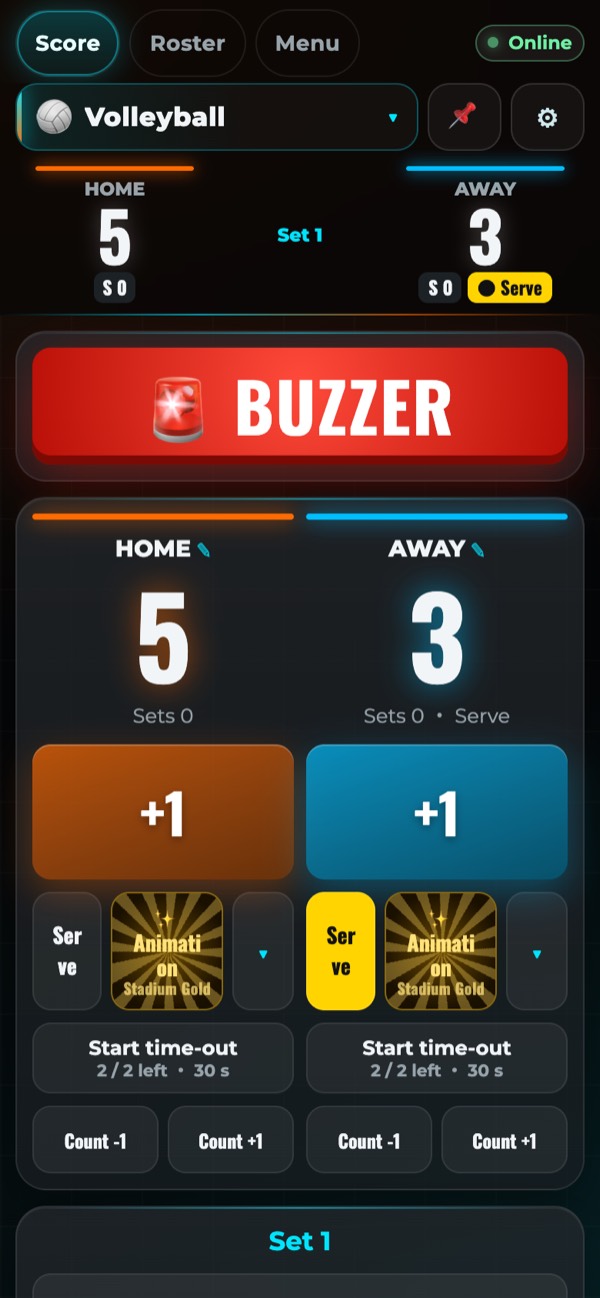
- Tap "+1" ("Point" in tennis and similar sports) to add a point. Sets and games are counted for you.
- "Serve" switches the serving team.
- "↩ Undo" takes back the last tap.
- "Break timer" shows the break between sets.
Baseball and softball
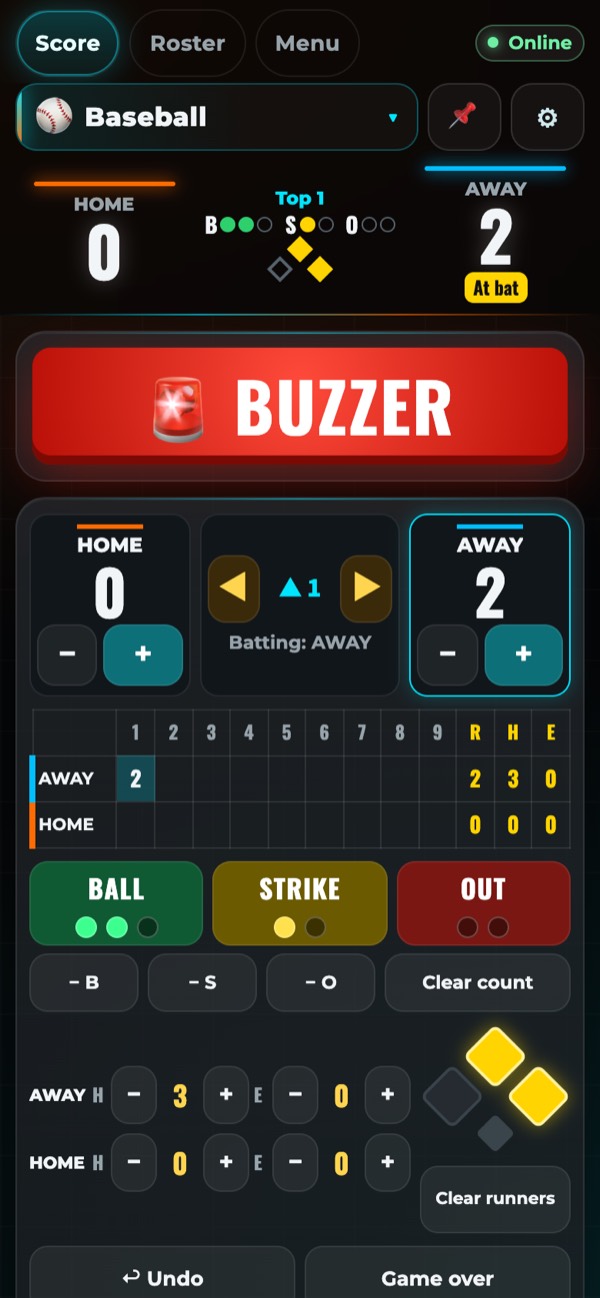
- Tap "BALL", "STRIKE" or "OUT" to add one to the count. After three outs, the game moves to the next half-inning by itself.
- "− B", "− S" and "− O" take one back. "Clear count" sets the count to zero.
- Add runs with "+" and "−" under each team. If you add a run for the team that is not batting, the app asks you to confirm.
- "◀" and "▶" move to the previous or next half-inning.
- Add hits (H) and errors (E) with "+" and "−" in the lower row.
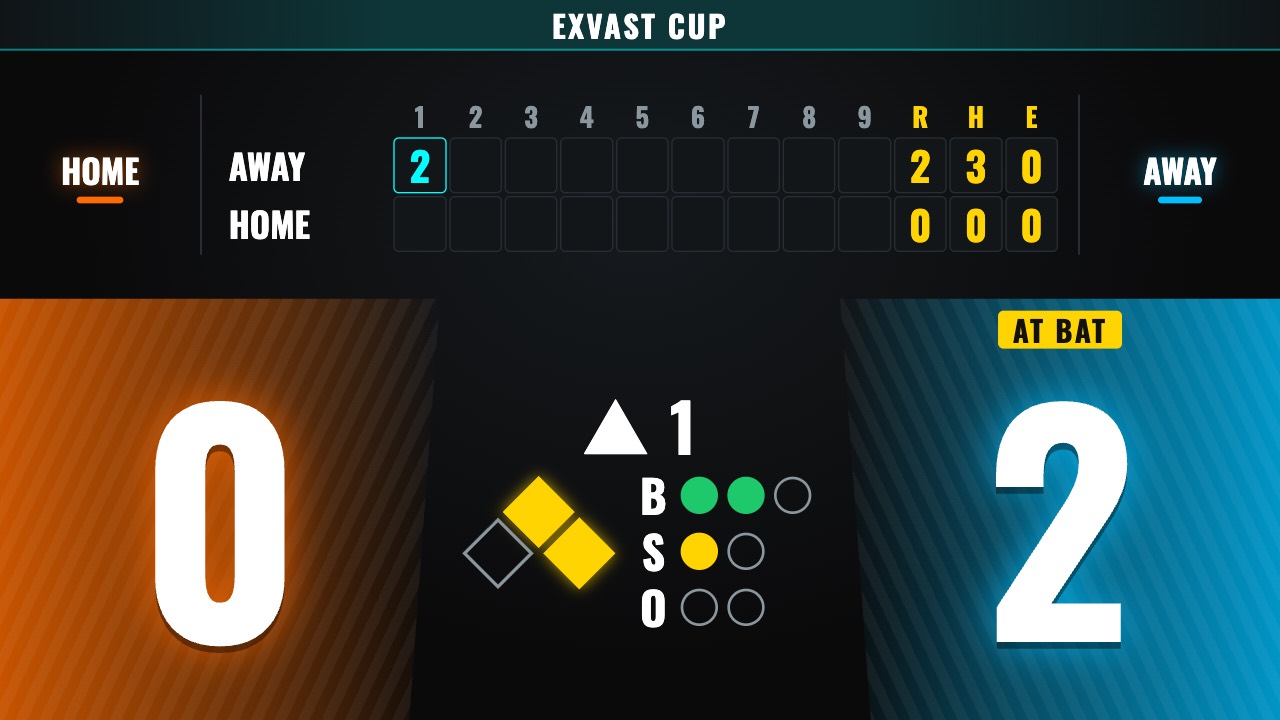
- Tap a base on the diamond to switch a runner on or off. "Clear runners" removes them all.
- Tap a cell in the line score to correct it.
- "↩ Undo" undoes the last action. "Game over" ends the game.
- Turn on "Use the pitch clock" to show the seconds before each pitch.
- Turn on "Show pitch speed" to show it on the scoreboard.
6. Teams
Tap "✎ Edit teams (name, colour, logo)" in the Menu, or tap a team name on the Score screen.
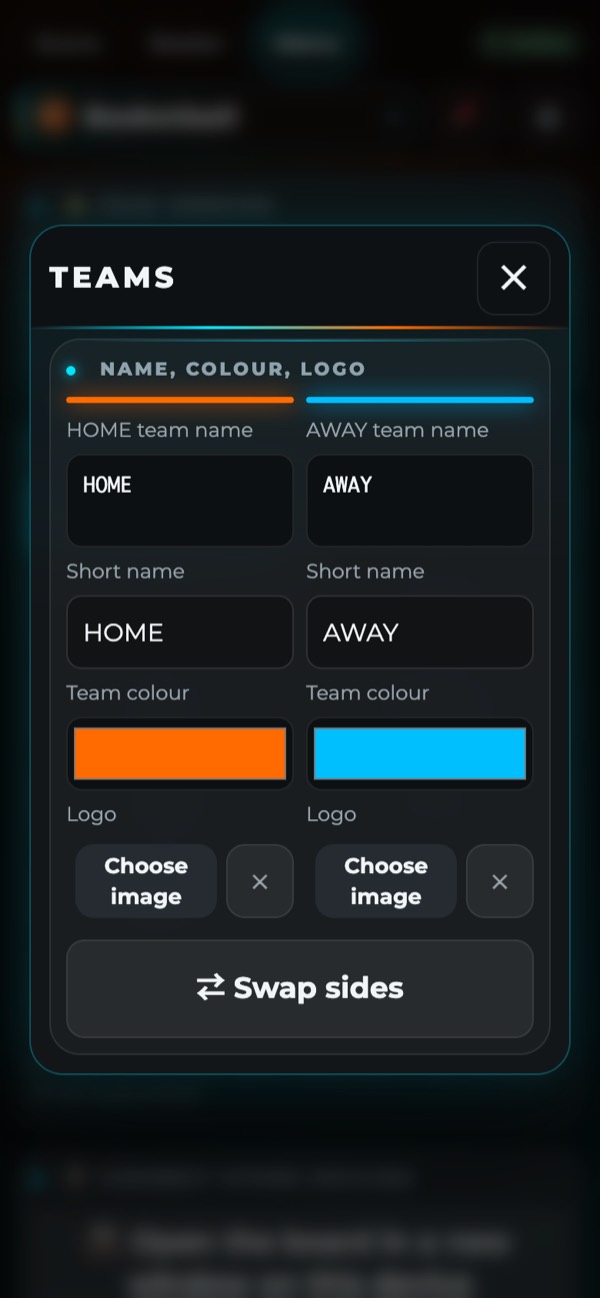
- Change the team name, short name and team colour.
- Choose a logo image to show it on the scoreboard.
- "⇄ Swap sides" swaps the left and right sides of the scoreboard.
In the free version, logos and other images are cleared when you close the app. The paid version keeps them.
7. Scoreboard appearance
Change it under Appearance in the Menu.
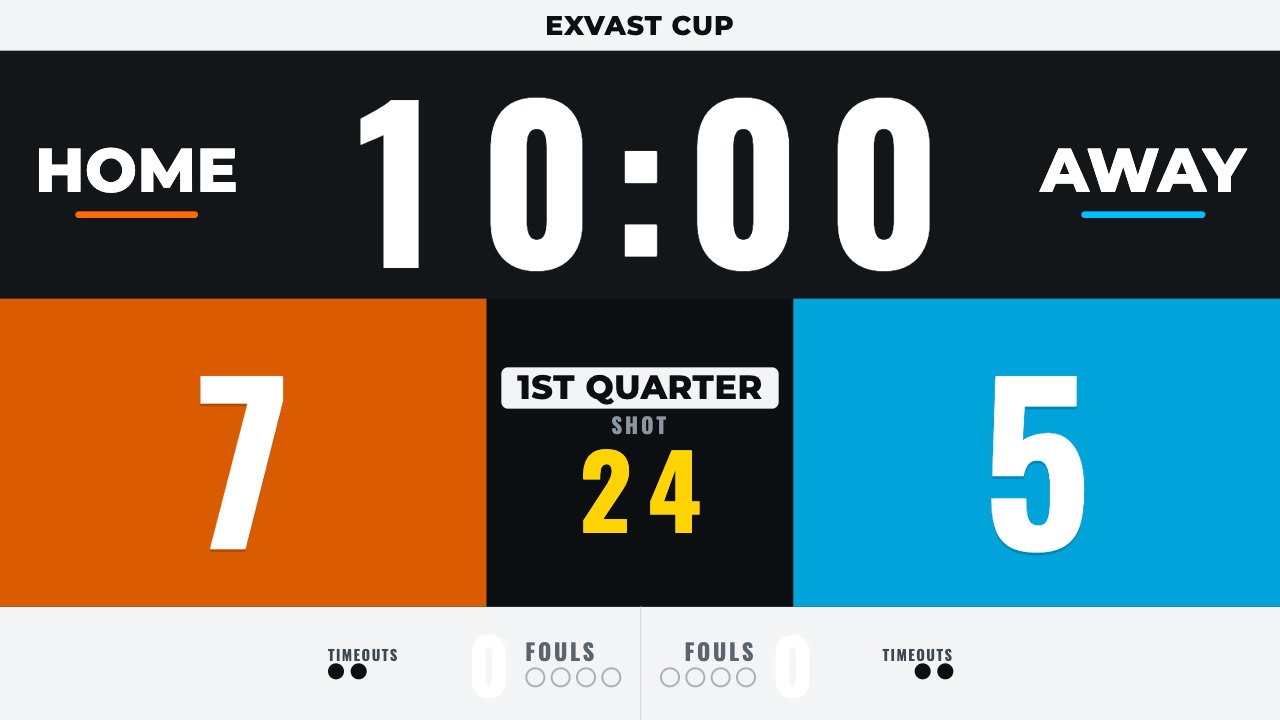
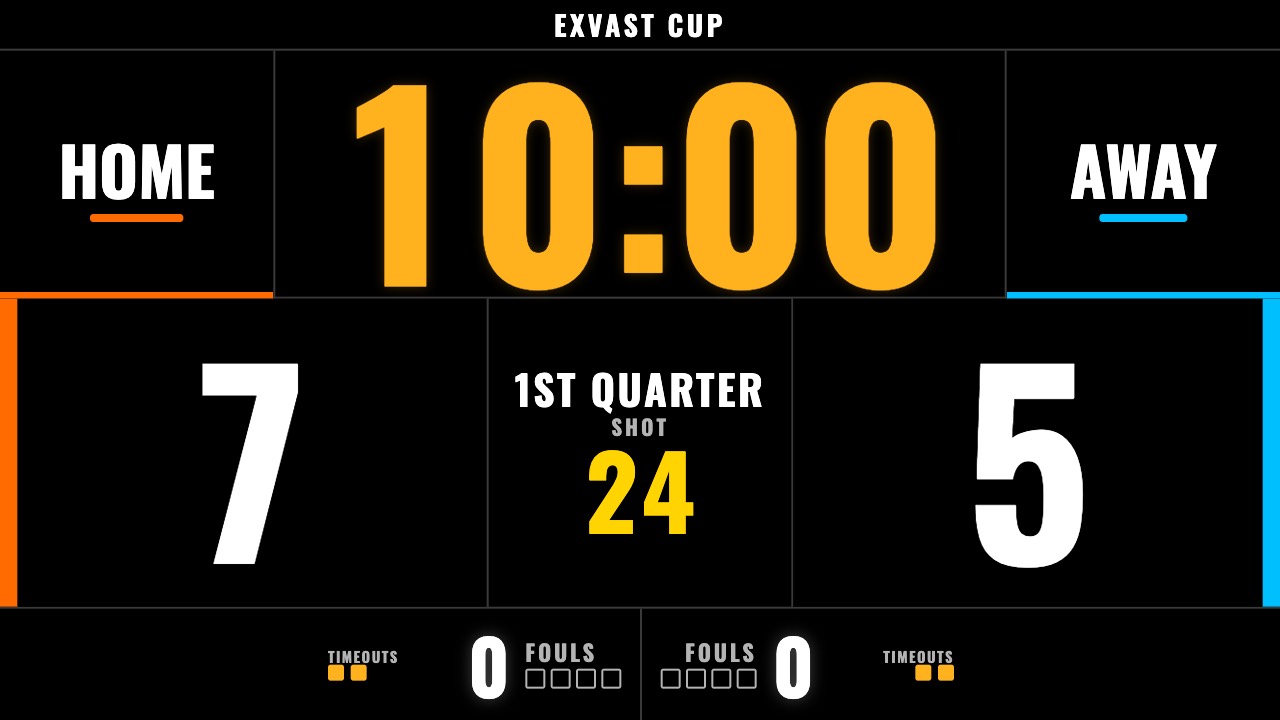
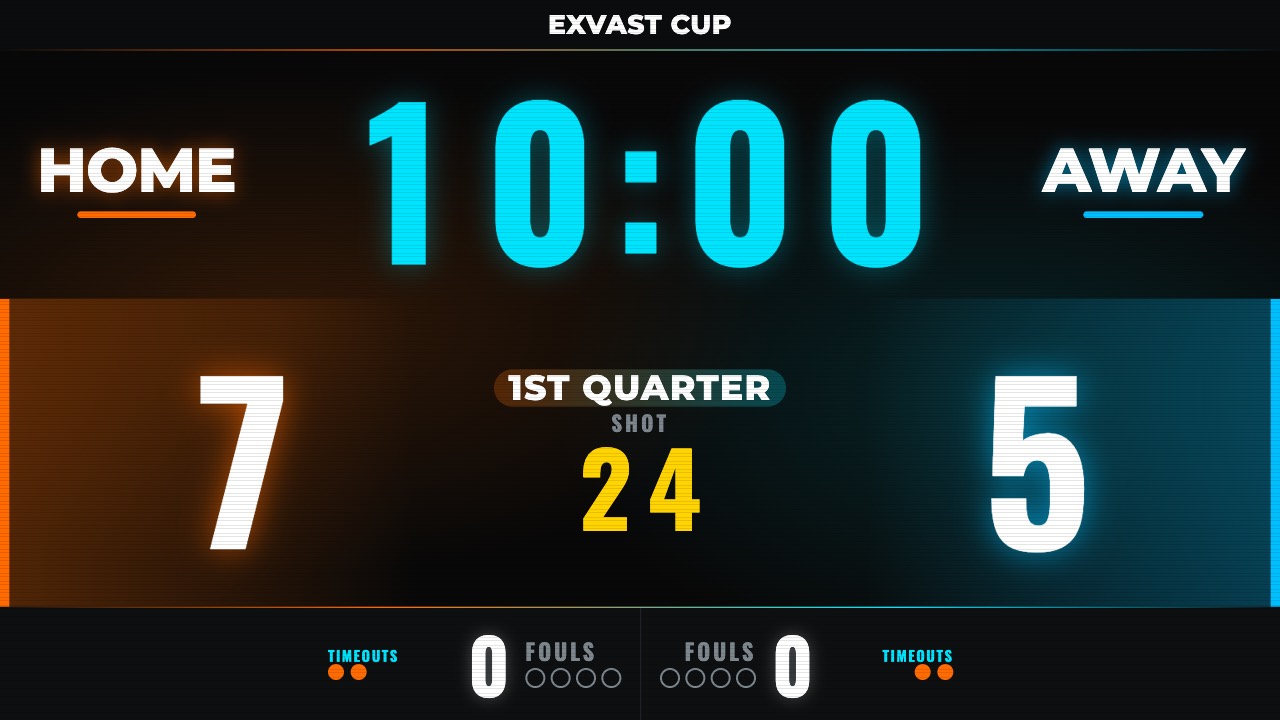
Skin (layout)
There are four.
| ARENA (bold) | BROADCAST (TV style) |
|---|---|
|  |
| OFFICIAL (competition) | EXVAST (brand) |
|---|---|
 |  |
Other settings
| Setting | What it does |
|---|---|
| Colour theme | Dark Neon, Arena Wood, Ice Rink or Stadium Turf. |
| Background image | Use your own image as the background. It is darkened so the text stays readable. |
| Clock font | Bold (default), Montserrat, Thin or Digital 7-segment. |
| Clock colour | Theme, White, Yellow, Orange, Red, Green or Cyan. |
| Board language | Use a different language on the scoreboard than on the remote. |
| Event title | Show the event name and logo at the top of the scoreboard. |
| Sponsor logos | Show up to three logos. |
8. Animations and buzzer
Goal animation
Choose one under Goal animation in the Menu.
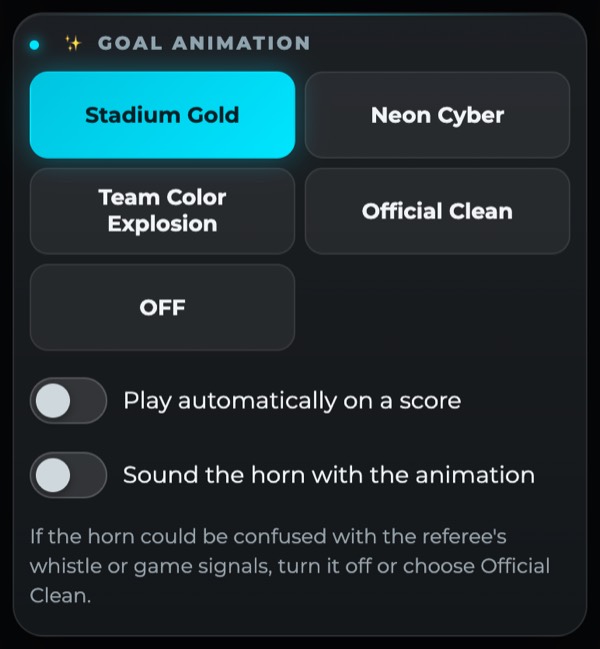
- There are four: Stadium Gold, Neon Cyber, Team Color Explosion and Official Clean. Choose OFF for none.
- Turn on "Play automatically on a score" to play it every time a team scores.
- "Sound the horn with the animation" adds a horn. Turn it off if it could be confused with the referee's whistle or game signals.
Buzzer
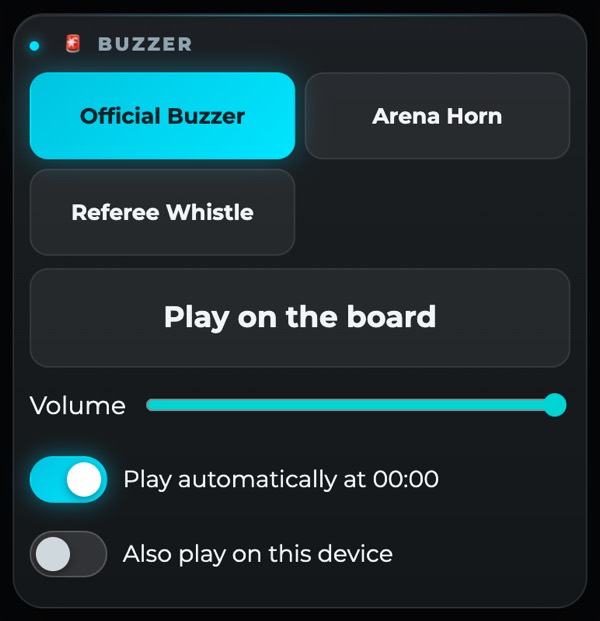
- There are three sounds: Official Buzzer, Arena Horn and Referee Whistle.
- Turn on "Play automatically at 00:00" to sound it when the clock runs out.
- The sound comes from the screen's speakers. Turn on "Also play on this device" to hear it on your device too.
9. Connect other devices
"Connect other devices" in the Menu shows two QR codes.
Only the iPhone or iPad connected to the screen needs the app. Other devices open the QR code in an ordinary web browser, so Android phones, Windows PCs and Chromebooks work too, with nothing to install.
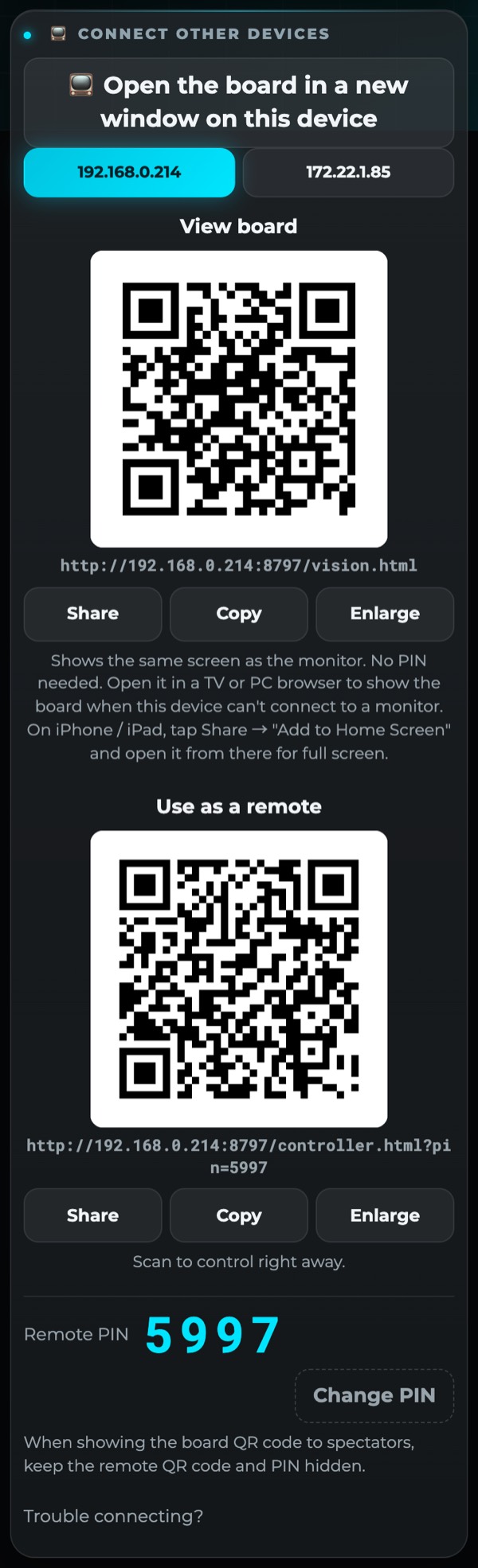
View board
Scan this QR code to show the same scoreboard in a browser on another device. No PIN is needed. If you cannot connect to a screen, open it in a browser on a TV or computer instead.
Use as a remote (paid version)
Scan this QR code to control the game from another phone or tablet. If you open the remote without the QR code, enter the 4-digit PIN.
When you show the board QR code to spectators, keep the remote QR code and the PIN hidden. You can change the PIN with "Change PIN".
Things to know
- Connect every device to the same Wi-Fi.
- School and venue Wi-Fi often blocks traffic between devices.
- In a browser, tap the scoreboard once to turn on sound.
- Closing the app disconnects the other devices too.
10. Share online (paid version)
People who are not on the same Wi-Fi can view the scoreboard from anywhere by scanning a QR code. They can watch but not control it. It is a way to keep people who cannot be at the venue up to date.
- Tap "Share online" below "Connect other devices".
- Send the QR code or the URL to the people you want to share it with.
- The app shows how many people are viewing. Up to 500 people can view at once.
- Tap "Stop sharing online" to finish. Viewers see "This live scoreboard has ended" and can no longer view it.
- While you are sharing, anyone with the URL can view it.
For the screen at the venue, keep using a cable or AirPlay. Viewing online has a slight delay and stops if the connection drops.
One purchase can share online from up to 5 devices.
11. Roster (paid version)
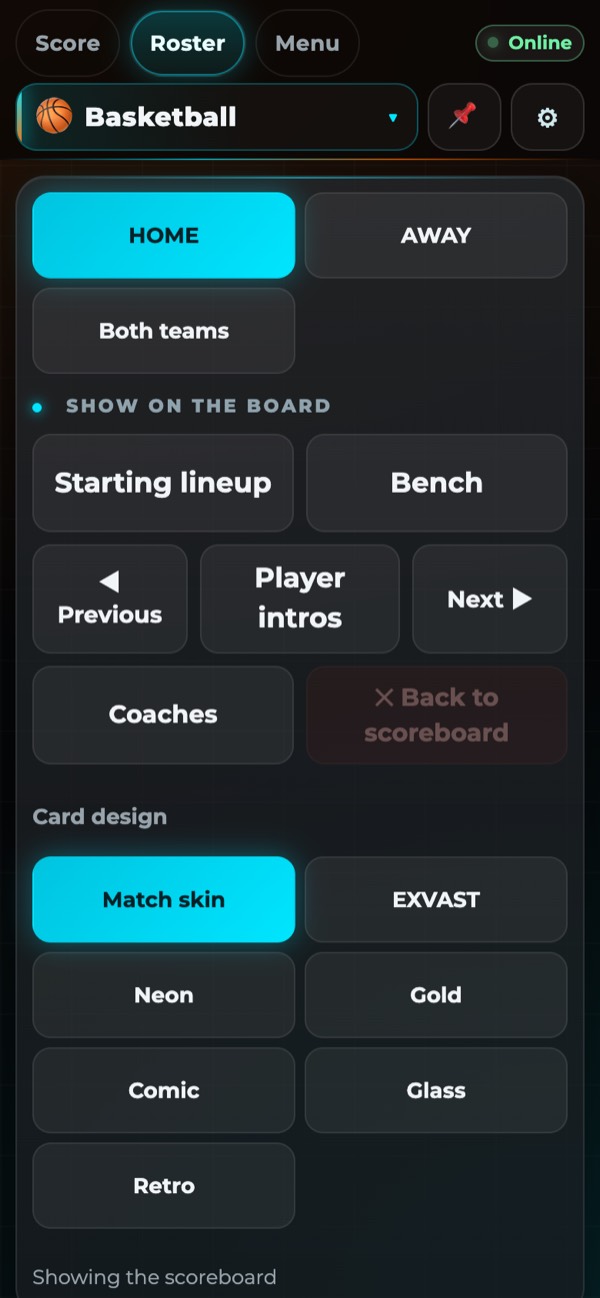
On the Roster tab you can build a roster and show starting lineups and player intros on the scoreboard.
Importing a roster
| Method | What to do |
|---|---|
| Google Sheets | Set sharing to "Anyone with the link can view", paste the link and tap Import. |
| Excel / CSV | Choose the file. |
| Paste | Copy a table, paste it and tap "Import pasted table". |
| By hand | Tap "+ Add player" to add players one at a time. |
Put headers in row 1: No., Name, Position, Starter (○ or 1). Excel files in the EXVAST-GFX format also work as they are.
Player photos
Choose a folder of photos named by jersey number (10.jpg, 7.png and so on) to assign everyone at once.
Show on the board
- Tap "Starting lineup", "Bench", "Player intros" or "Coaches" to show them on the scoreboard.
- In player intros, "◀ Previous" and "Next ▶" move through the players.
- "✕ Back to scoreboard" returns to the score and the clock.
- Card designs: Match skin, EXVAST, Neon, Gold, Comic, Glass and Retro.
12. Language
Choose from nine languages under Language in the Menu.
English, Español, Deutsch, Français, Italiano, Português, 日本語, 한국어, 繁體中文
- On first launch, the app uses your device language.
- To use a different language on the scoreboard only, set "Board language" under Appearance.
13. Free and paid versions
| Free | Paid | |
|---|---|---|
| Scoreboard and clock | ○ | ○ |
| Watermark and ads | Yes | No |
| Save logos and images | — | ○ |
| Rosters and lineups | — | ○ |
| Extra remotes | — | ○ |
| Share online | — | ○ |
The free version shows an EXVAST.LIVE watermark on the scoreboard and ads on the remote. The score, clock and team names of a game in progress are kept in the free version too.
Plans
| Plan | Monthly | Yearly |
|---|---|---|
| 1 sport | ¥480 | ¥3,800 |
| 3 sports | ¥980 | ¥7,800 |
| All sports | ¥2,980 | ¥22,800 |
Prices shown are for Japan. The App Store shows the price for your country.
- With the 1-sport and 3-sport plans, you choose your sports. The paid features work only while one of those sports is selected.
- Basketball and 3x3, and baseball and softball, each count as one.
- You can add a sport to an empty slot at any time. You can swap sports once every 30 days.
Buying, restoring and cancelling
- Buy a plan under "Paid version" at the top of the Menu. Payment is through the App Store.
- After changing devices or reinstalling the app, tap "Restore purchase".
- Plans are auto-renewing subscriptions. They renew at the same price unless cancelled at least 24 hours before the end of the period.
- To cancel or change your plan, open Settings on your iPhone or iPad, tap your name, then Subscriptions.
14. Troubleshooting
| Problem | What to try |
|---|---|
| The scoreboard does not appear on the screen | Unplug the cable and plug it in again. With AirPlay, choose the screen again under Screen Mirroring in Control Center. |
| Other devices cannot connect | Check that every device is on the same Wi-Fi. If the venue Wi-Fi does not work, use Personal Hotspot on your iPhone or iPad. |
| No sound from the scoreboard in a browser | Tap the screen once. |
| The scoreboard has stopped | Check that the app is open. It stops if you switch to another app or lock the screen. |
| The paid features are not active | Tap "Restore purchase" under "Paid version" in the Menu. With the 1-sport and 3-sport plans, check that the current sport is one of your chosen sports. |
If that does not help, contact us at info@exvast.live.