EXVAST-GFX Mobile Manual
0. What EXVAST-GFX Mobile does
This app puts broadcast-style score graphics over the camera video on your iPhone or iPad. You can record it or stream it live as it is.
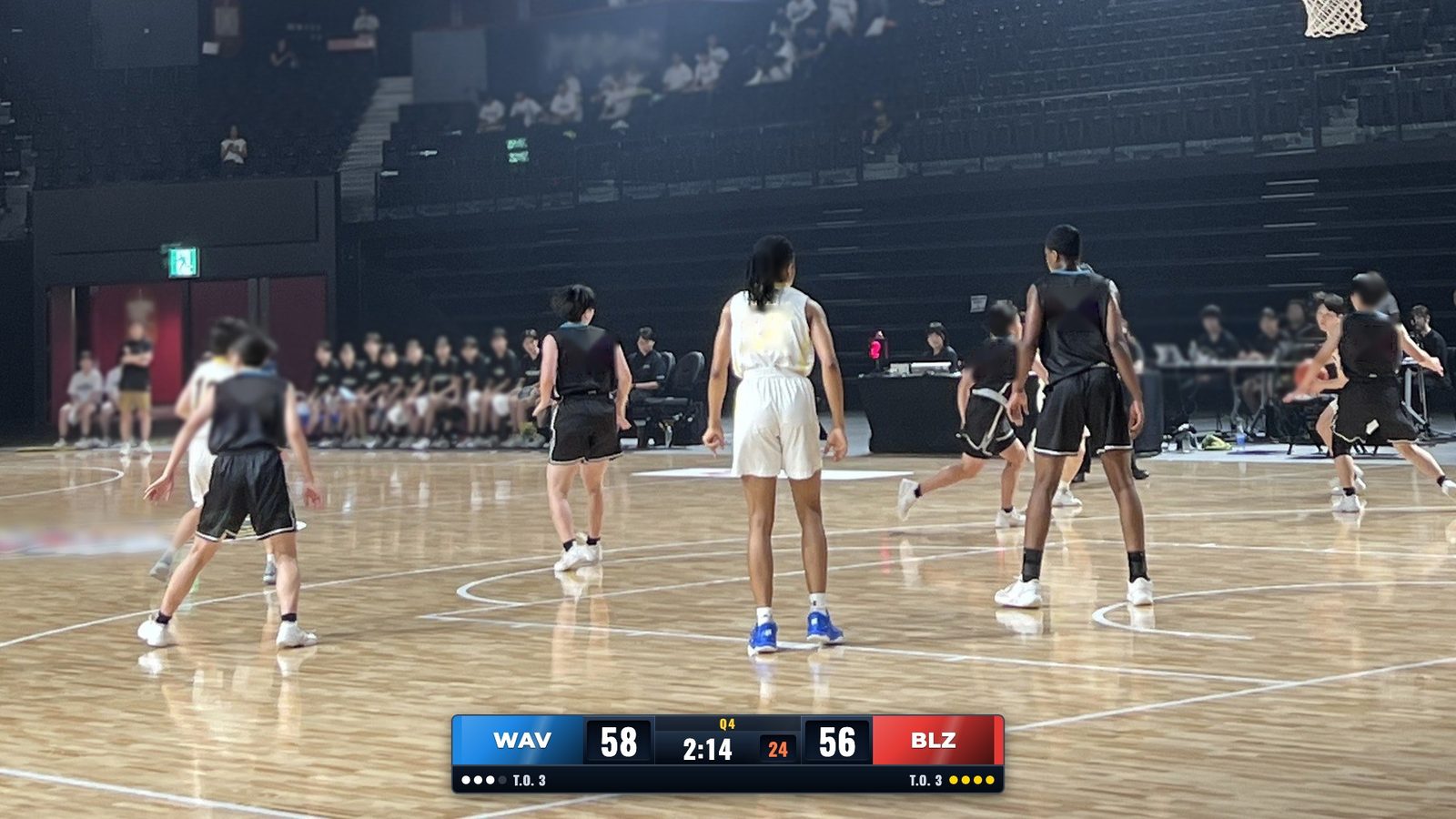
- Works with 25 sports. The score, clock and periods follow the rules of each sport.
- Record, or stream live (YouTube, Facebook, Twitch and more).
- Add graphics to the built-in camera, a USB camera, or a video you already shot.
- Choose landscape (16:9) or portrait (9:16).
- After the game, make a final score image and share it on social media or in messaging apps.
- With the paid version, you can keep score from another phone or tablet.
Team names are fictional. The graphics are drawn by the app.
1. What you need
- An iPhone or iPad with iOS / iPadOS 17 or later
- A tripod or a phone stand (it makes things easier)
- To stream: the server URL and stream key (you get them from YouTube or another service)
2. Getting started
- Open the app.
- Tap the name of a sport to choose it.
- Point the camera at the game.
- If “Graphics ON” at the top is lit, the graphics are on the video.
- Tap “● REC” or “Go Live”.
3. The Score screen
The “Score” tab on the far left is the screen you use during the game.
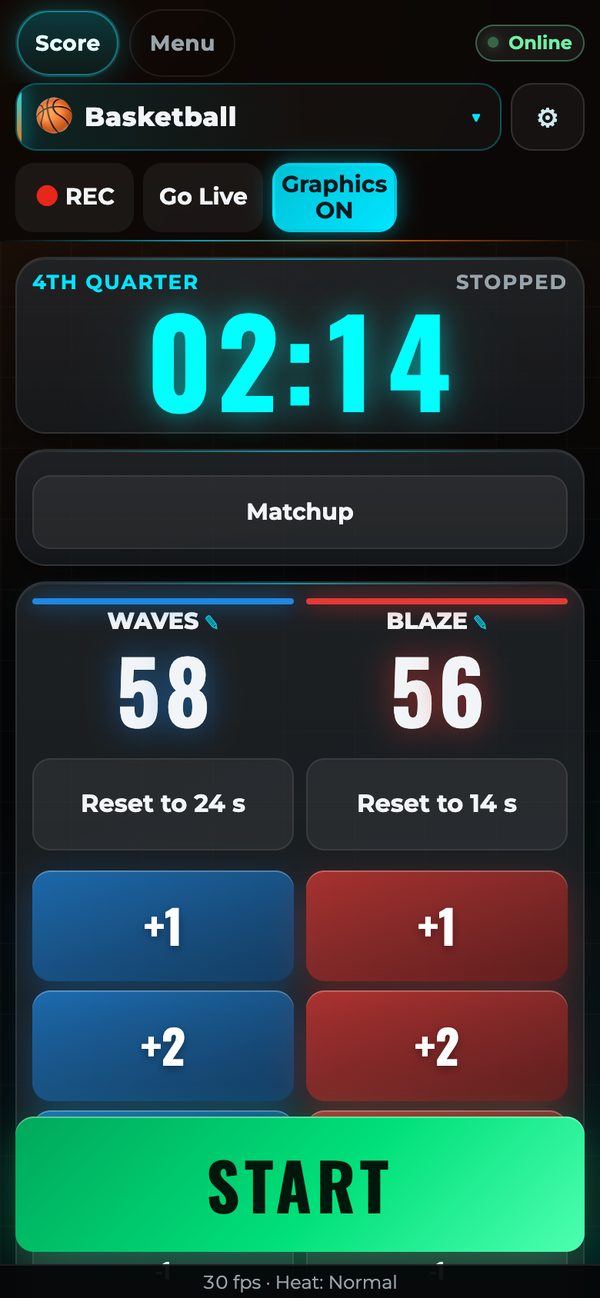
Top bar
It stays at the top, however far you scroll.
| Button | What it does |
|---|---|
| ● REC | Records the video with the graphics. Tap again to stop. |
| Go Live | Starts the stream. If you have not set a stream destination yet, it takes you to the stream settings. |
| Graphics ON | Shows or hides the score graphics. |
Score and clock
- Tap “+1” and the other score buttons, and the score shows on the graphics right away. If you tap by mistake, take it back with that team's “-1”.
- “START” starts the clock. Tap again to stop it.
- Tap a period (Q1, P1, OT, Final, etc.) to move to that period.
- “Matchup” shows a graphic of the two teams before the game.
- “Score summary” shows a graphic of the score by period.
- Some sports also show buttons for the shot clock, fouls, time-outs and more. If you tap a time-out by mistake, take it back with “Tapped by mistake (give it back)”.
- For baseball and softball, go to “Design” → “Baseball scoreboard” in the Menu to choose “Live”, “Line score”, “R H E” or “Big score”.
4. Video
Set this up under “Video” in the Menu.
Video input
| Input | What it is |
|---|---|
| Built-in camera | The camera on your iPhone or iPad. |
| USB Video | Shows up when you connect a USB camera or an HDMI capture adapter. |
| 🎞 Choose a video from Photos… | Plays a video you already shot, so you can add graphics and record or stream it. |
| 📁 Choose a video from Files… | Choose a video from a folder, iCloud Drive or a USB drive. |
You cannot change the input while recording or streaming.
Video shape
- Choose “Landscape (16:9)” or “Portrait (9:16)”. Portrait video is ready to post as a vertical video on social media.
- Use “Video position when held sideways” to show the video on the left or on the right.
5. Graphics design
Set this up under “Design” in the Menu.
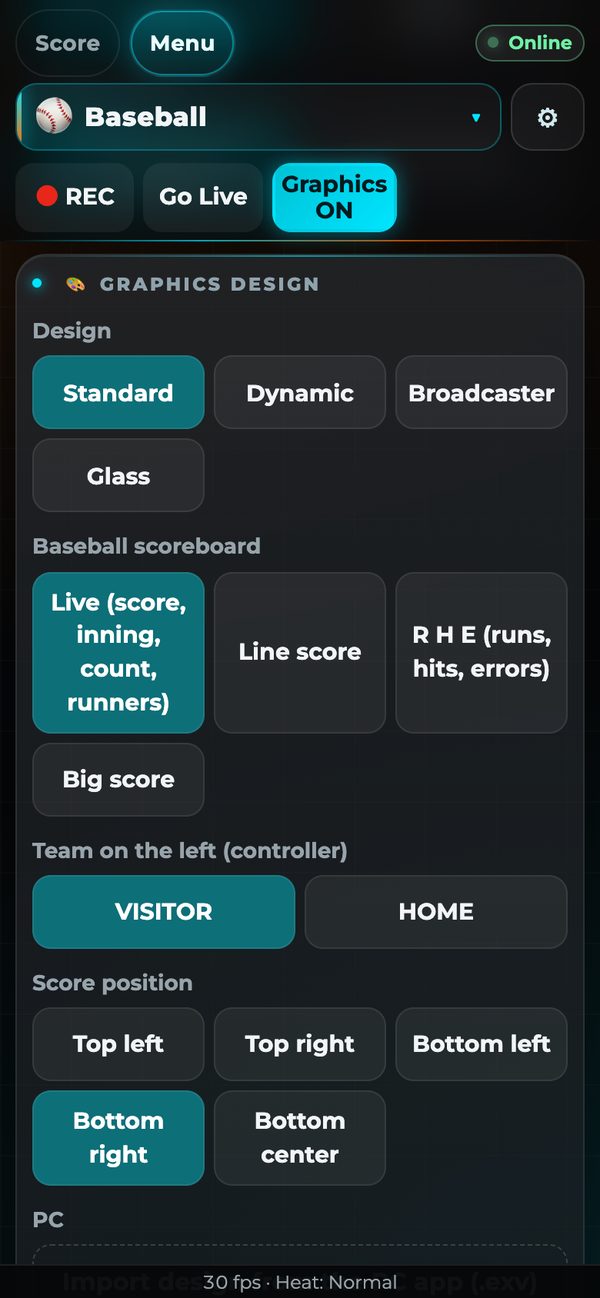
- “Design” has 4 looks: Standard, Dynamic, Broadcaster and Glass.
- Use “Score position” to choose where the score goes. The choices depend on the sport (for example top left, top right, bottom left, bottom right or bottom center).
- For baseball, you can also choose “Baseball scoreboard” and “Team on the left (controller)”.
- “Import design from the PC app (.exv)” loads the graphic positions, sizes and design you made in the PC app EXVAST-GFX (soccer, arena sports and baseball).
6. Streaming
Set this up under “Stream” in the Menu.
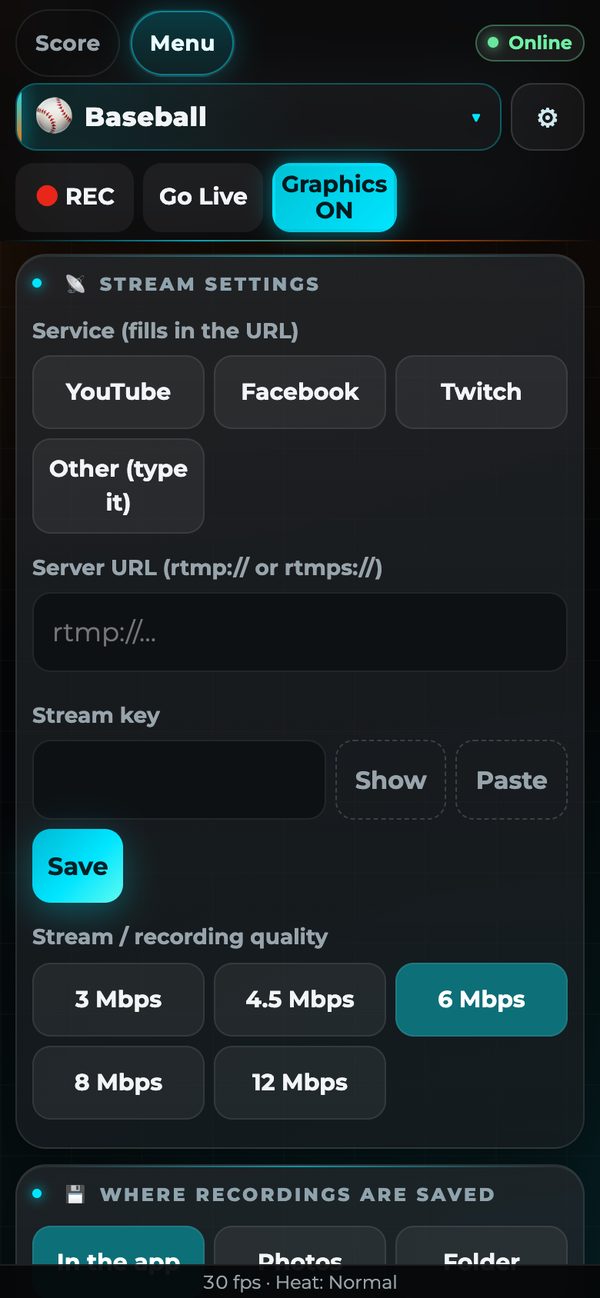
- In “Service (fills in the URL)”, choose YouTube, Facebook or Twitch, and the URL is filled in. For other services, choose “Other (type it)”.
- In “Stream key”, enter the key you got from the service. You can use “Paste” to paste it.
- Tap “Save”.
- Tap “Go Live” in the top bar to start the stream.
- Choose “Stream / recording quality” from 3 to 12 Mbps. If the connection is slow, the app lowers the quality on its own.
- The stream key is saved in a safe place on the device (the Keychain).
7. Recording
Choose where recordings are saved under “Recording” in the Menu.
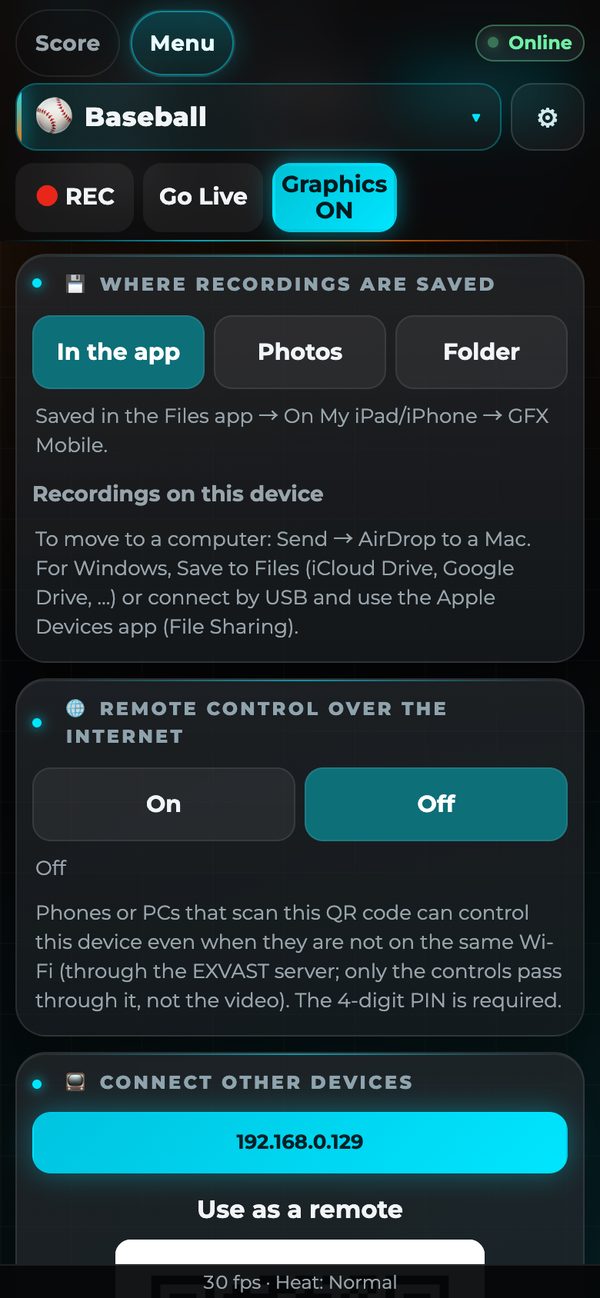
| Saved to | Where it goes |
|---|---|
| In the app | The Files app → “On My iPhone” (“On My iPad” on iPad) → “GFX Mobile”. |
| Photos | The Photos app. |
| Folder | Written straight to the folder you pick with “Choose folder…”. If you record to a USB SSD, even long recordings do not use space on your device. |
Your recordings are listed under “Recordings on this device”. Tap “▶ Play” to watch, “Send” to send with AirDrop and more, or “Delete” to delete.
8. Control from other devices (paid version)
One person can film while another keeps score.
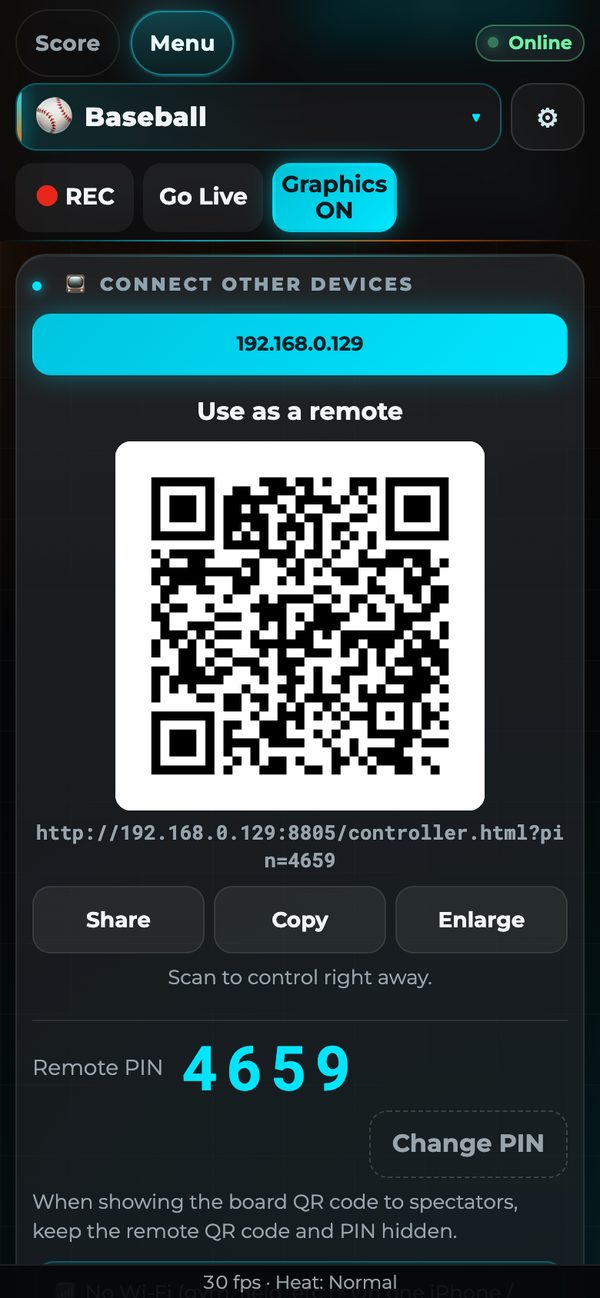
- On another phone or tablet, scan the QR code under “Connect other devices” → “Use as a remote”. It opens in the web browser, so no app is needed.
- Use the same Wi-Fi. If you open it without the QR code, enter the 4-digit PIN.
- Set “🌐 Remote control over the internet” to “On” to keep score even when you are not on the same Wi-Fi. Only the controls go through the server, not the video.
- The stream destination and stream key can only be changed on the device that is filming.
9. Free version and paid version
| Free version | Paid version | |
|---|---|---|
| All sports | ○ | ○ |
| Control | From the filming device | Also from other phones and tablets (same Wi-Fi or internet) |
| “EXVAST.LIVE” watermark on recordings and streams | Yes | None for the sports you choose |
| Ads | None | None |
Plans
| Plan | Billing |
|---|---|
| 1-sport plan | Monthly or yearly |
| 3-sport plan | Monthly or yearly |
| All-sports plan | Monthly or yearly |
Prices are shown in the App Store for your country.
To buy, tap “⭐ Paid version” at the very top of the Menu. You pay through the App Store.
10. Troubleshooting
| Problem | What to do |
|---|---|
| The device gets hot | The app lowers the quality on its own. Keep it out of direct sunlight and take off the case. |
| The stream does not start | Check the URL and stream key in the stream settings. |
| Other devices cannot connect | Make sure they are on the same Wi-Fi. School and facility Wi-Fi sometimes blocks devices from talking to each other. |
| No graphics on the video | Check that “Graphics ON” in the top bar is lit. |