How to Add a Scoreboard to Game Videos You Already Filmed and Export an MP4
You filmed your kid's Little League or youth soccer game, or a high school or club team game, on a camcorder or phone. With EXVAST-GFX you can add a scoreboard and starting lineups to that video afterwards and export an MP4 – no complicated video editing software. You just watch the video and press buttons. Share the result on YouTube, send it to parents and teammates, or use it for highlight videos.
What you need
- Windows 10 / 11 (64-bit) or a Mac with Apple silicon (M1 or later, macOS 14 Sonoma or later)
- EXVAST-GFX (free download)
- The game video file shot on your camcorder or phone
- Note: the Media Controller, which loads your recorded video, is a PRO / STUDIO feature. Recording an MP4 works on every plan.
Step 1. Open the baseball or football graphics
Launch EXVAST-GFX and open Baseball or Football from the launcher. The Controller (where you operate the graphics), the Output Manager (recording and output) and the Receiver (where the graphics appear) open.
Step 2. Set up the teams
In the Controller, open the SETTINGS tab and use Team Config to enter team names, abbreviations and logos. You can also choose where the scoreboard appears.
Step 3. Load your game video
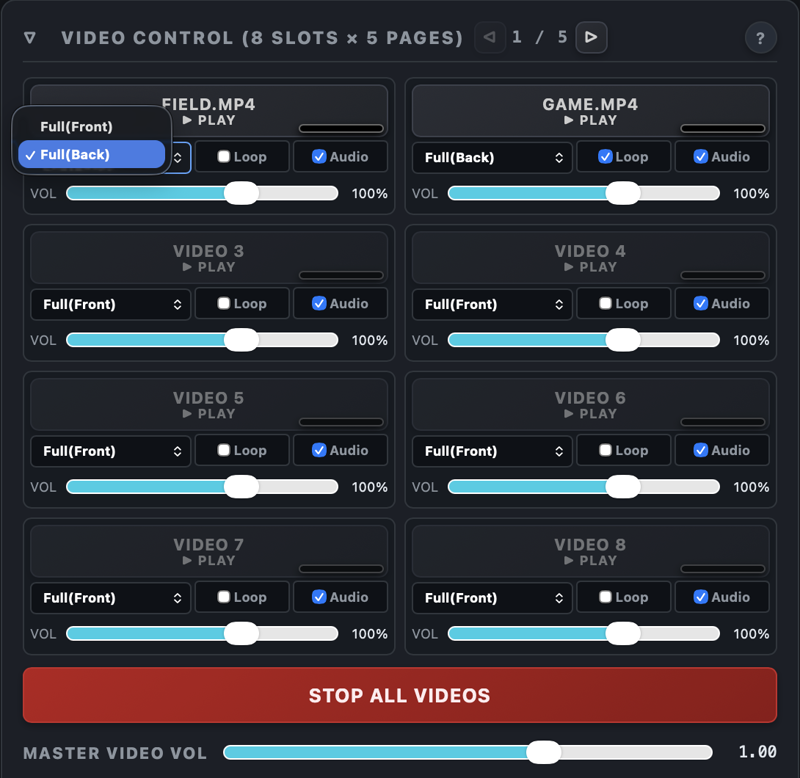
Open the Media Controller from the Media tab in the right-hand dock (or press ⌘4). Put your game video into a slot under Video Control.
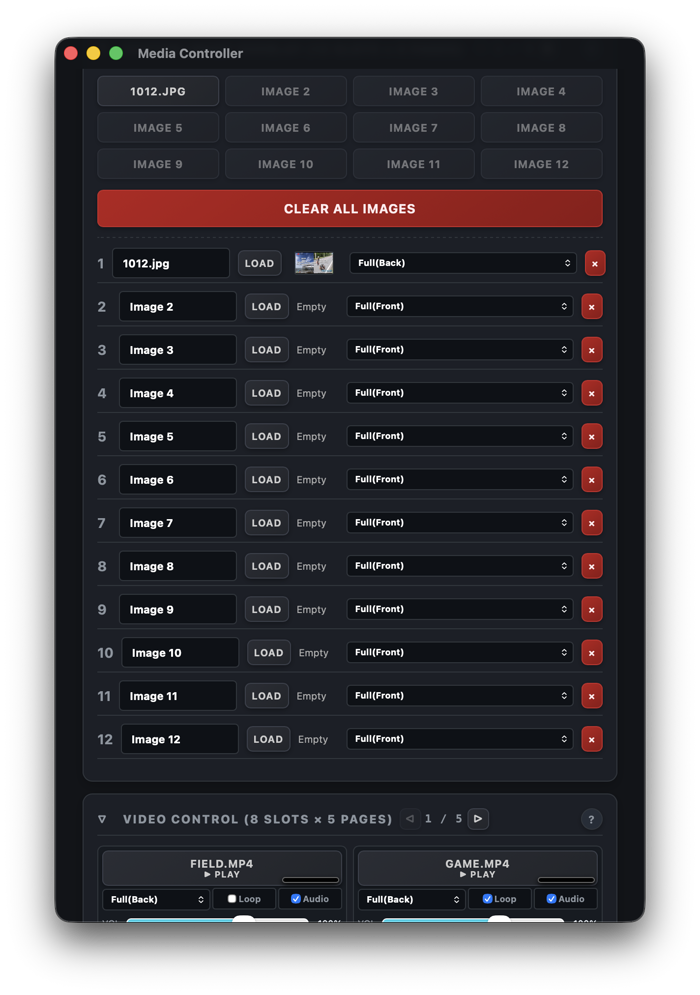
Set the video to play as Full (Back) – behind the graphics. The scoreboard and player intros then appear on top of your game footage.
Step 4. Start recording, then play the video
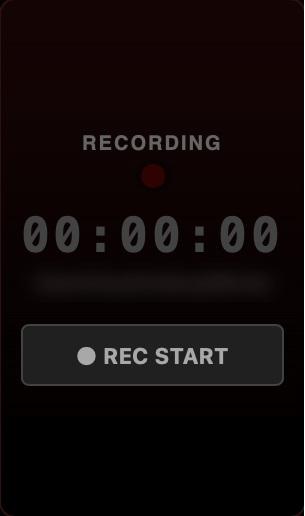
Press ● REC START in the Recording section of the Output Manager, then play the video.
Step 5. Watch the video and press the buttons
As you watch, use the Controller to show the scoreboard (Show / Hide), change the score with + / −, and bring up starting lineups and player intros. Just follow the game. The video's sound is recorded too.
Step 6. Stop recording and get your MP4
When the video ends, press ● REC START again to stop. When you see "Recording saved successfully.", your MP4 with graphics is ready. By default it is saved in your Movies folder (you can change this under Recording in Preferences). Upload it to YouTube or share it as it is.
Good to know
- This works by recording while the video plays. If you make a mistake, you can simply do it again.
- If you would rather finish in an editing app, you can also record the graphics alone with a transparent background. See section 10-2 of the User Guide.
- Recording will not start if the save location has less than 5 GB free.
Try it on your next game video
EXVAST-GFX is free to download and try. More features are covered in the User Guide.
Download for free